how JavaScript handles events
JavaScript can only do one thing at a time due to its single threaded execution. by understanding this, we can nails on how JS handles events.
the event loop
why one thing at a time?
JavaScript runs in a single thread so it only has one worker, one task list, and no parallel execution. when a line on code runs, nothing else can run. when a button is clicked while the code is executing, the click waits.
this makes the code more predictable as you don't have to worry about two pieces of code accidentally modifying the same thing at the same moment. all you need to do is to understand how JS engine manages and prioritizes which is the role of the event loop.
the two queues
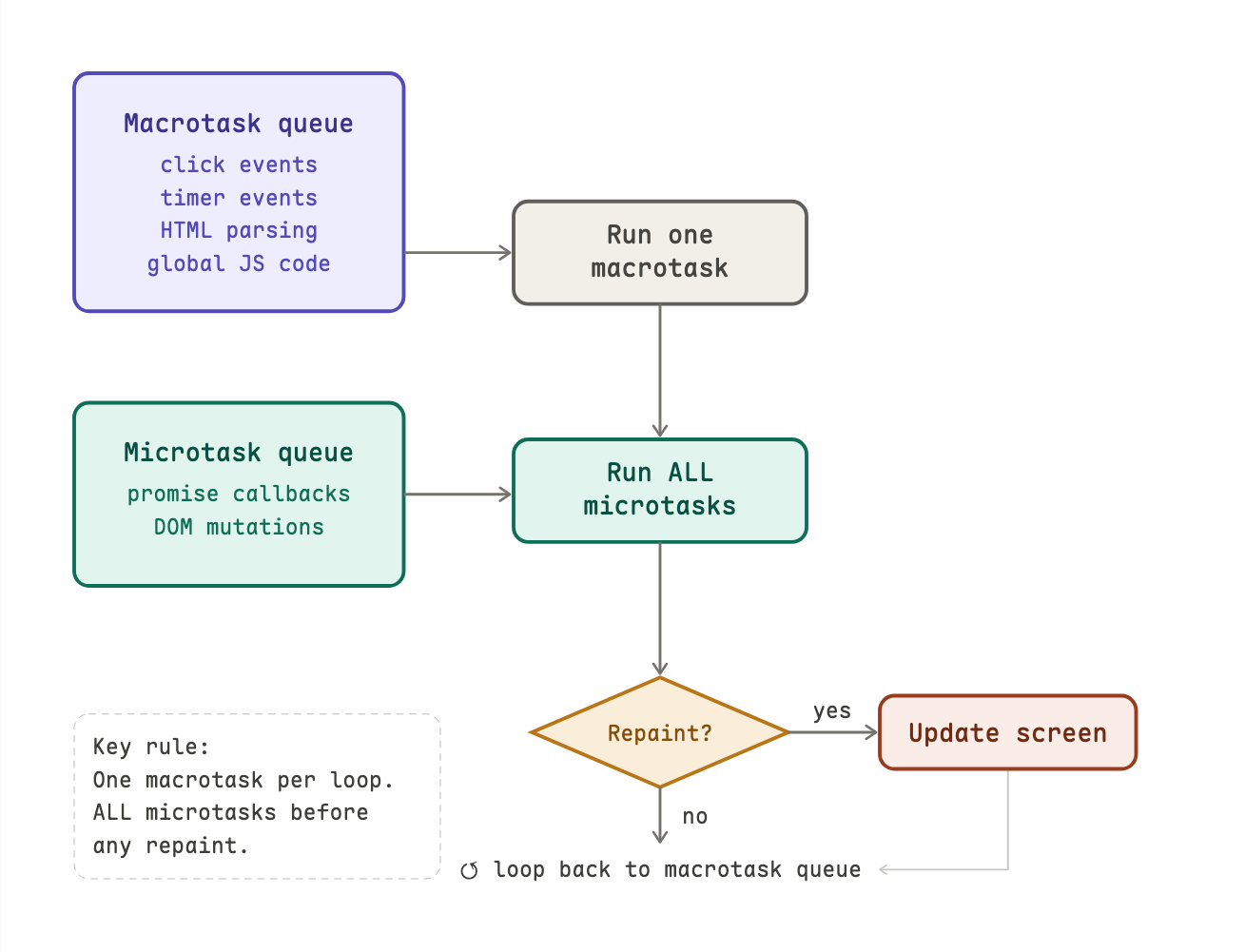
the browser manages work through two queues: a macrotask queue and a microtask queue.
macrotasks are big, discrete units of work such as parsing HTML, running your JavaScript, handling a click, and firing a timer. the browser does one at a time, and after each one it can do other things like repaint the screen.
microtasks are small, urgent follow-ups such as promise callbacks, DOM mutation notifications. once microtask finishes, all pending microtasks run before the browser does anything else, even before repainting.
here is how browser prioritizes the tasks.
the 16ms budget
browsers aim to repaint 60 times per second or one frame every 16 milliseconds. if your macrotask (plus all its microtasks) takes longer than 16ms, the browser can't repaint in time causing the page to feels laggy or frozen. if it takes more than a few seconds, the browser shows an "Unresponsive script" warning.
so keep your tasks short and use the 16ms budget as benchmark.
the loop in action
let's build our understanding through this concrete example. suppose you have two buttons, and a user clicks both quickly one after another while your initial code is still running.
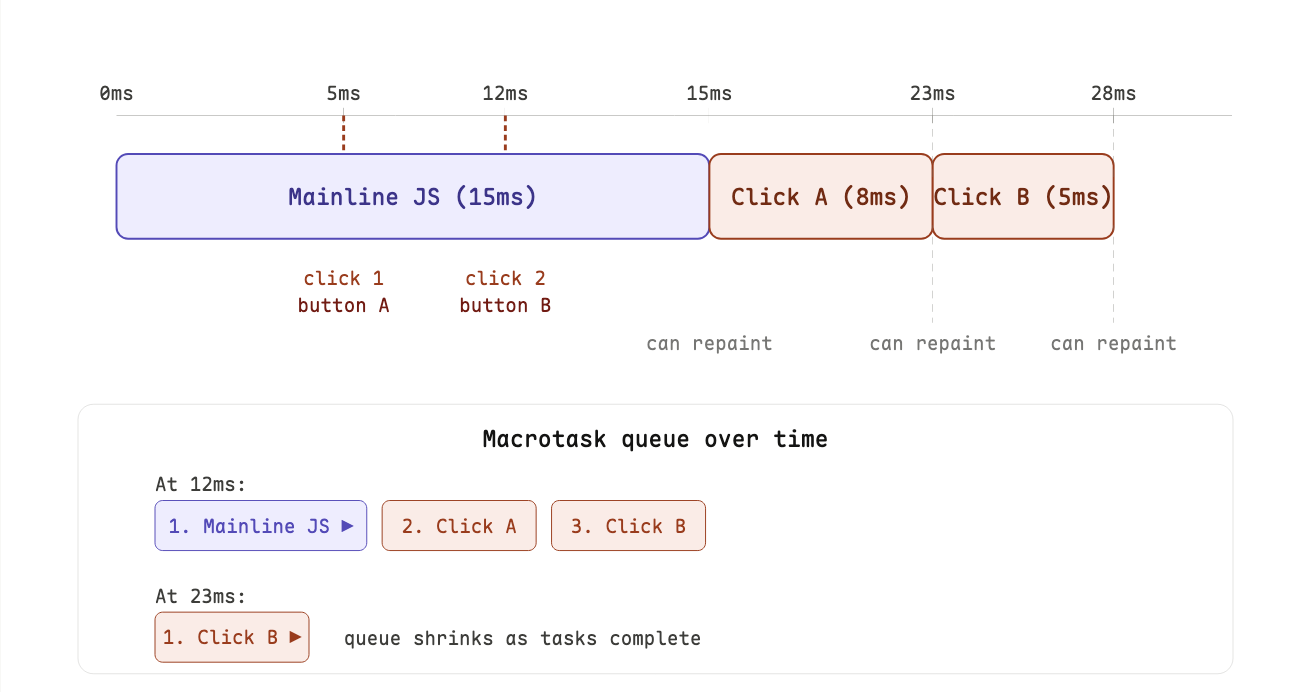
from the diagram, we know that clicking a button does not immediately run the handler. it queues a task and wait until the previous tasks are done. by the time Click B's handler runs (clicked at 12ms), it is already at the 23ms mark.
what happens when you add a Promise?
Promises produce microtasks. microtasks jump the queue so they run before the next macrotask, even if that macrotask has been waiting longer.
const box = document.getElementById('box');
const btn = document.getElementById('btn');
btn.addEventListener('click', () => {
console.log('Click handler (macrotask) started');
// Change 1 — happens inside macrotask
box.style.background = 'red';
box.textContent = 'Red (set in click handler)';
// Promise callback runs as microtask — still before repaint
Promise.resolve().then(() => {
console.log('Promise callback (microtask) running');
box.style.background = 'blue';
box.textContent = 'Blue (set in microtask)';
});
console.log('Click handler finished');
});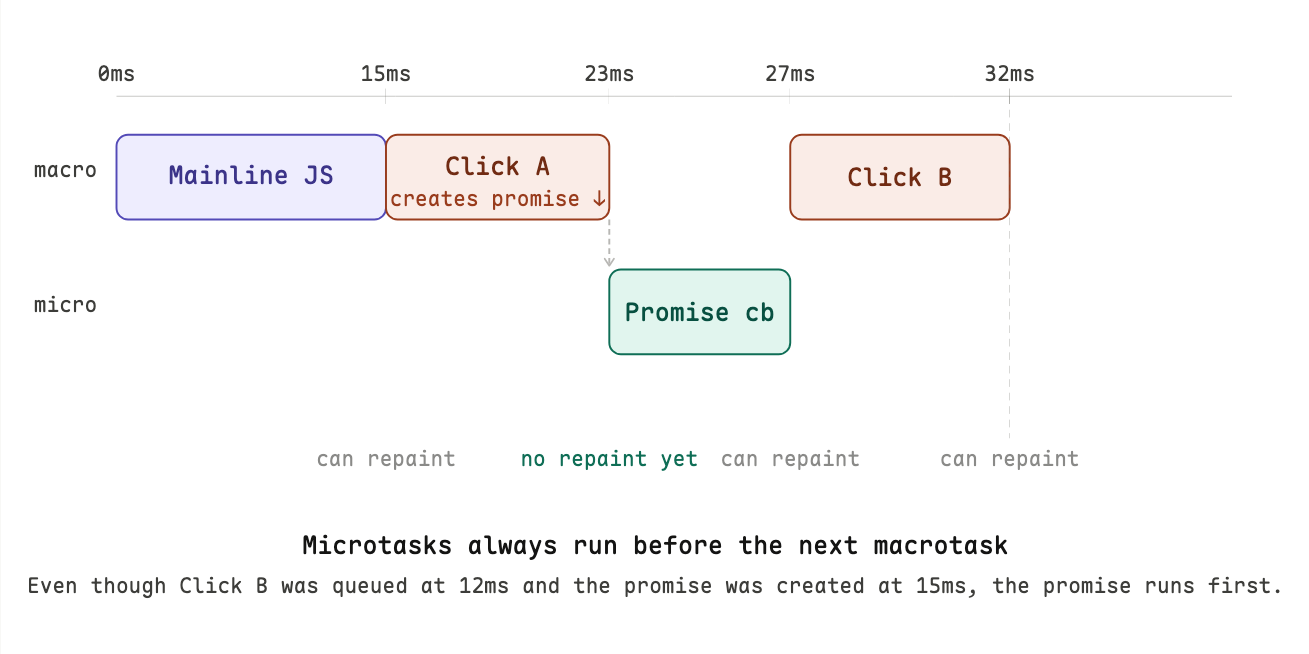 this also means the browser can't repaint between Click A and the promise callback. the screen only updates once the microtask queue is empty. be careful: a chain of microtasks that keeps adding more microtasks can definitely block the screen from updating.
timers
what setTimeout and setInterval does
both functions do the same basic thing: after a delay, adds a task to the macrotask queue. they don't run your code after exactly N milliseconds but only schedule it to enter the queue after N milliseconds. when the execution happens depends on what else is in the queue.
setTimeout(fn, 10);  // adds fn to the queue after 10ms — might run at 28ms
setInterval(fn, 10); // keeps re-adding fn every 10ms — until cancelled
this is why we say timers are "delayed by at least N milliseconds" and never exactly.
please not that they are also not suitable for time-critical, high-accuracy tasks like professional audio applications where the Web Audio API is the standard for these cases.
the difference
setTimout always ensure a genuine gap after the previous run ends and the work can never overlap.
setTimeout(function repeat() {
	// do work
	setTimeout(repeat, 10); // reschedule only after work finishes
}, 10);
a single setInterval will never have more than one callback instance pending in the queue at any time.
setInterval(function() {
  // do work
}, 10); // tries to fire every 10ms regardless of how long work takes
If the interval fires again while:
- the previous callback is still executing, or
- a previous callback is already sitting in the macrotask queue waiting to run, then the new firing is silently dropped (ignored). The browser does not queue it, and it does not throw an error. It just disappears.
visual comparison between the two:
| time (ms) | setInterval(..., 10) does |
self-rescheduling setTimeout does |
|---|---|---|
| 0 | Callback #1 queued | Callback #1 queued |
| 10 | Timer fires → #2 would be queued, but #1 is still running → dropped | — |
| 20 | Timer fires → #3 would be queued, but #1 still running → dropped | — |
| 25 | Callback #1 finishes | Callback #1 finishes → immediately reschedules next for +10 ms |
| 35 | Timer fires → #2 now queued (and runs) | Callback #2 runs (exact 10 ms gap after previous finish) |
| … | Continues dropping until the callback is fast again | Always guarantees minimum 10 ms gap after work finishes |
result with setInterval:
- you lose firings (in this case, two out of every three).
- you never get overlapping execution.
- the effective rate becomes slower than requested when the work is heavy.
result with self-rescheduling setTimeout:
- you never lose a firing.
- there is always a genuine minimum gap equal to the interval after the work finishes.
- the effective rate slows down gracefully under load instead of skipping beats.
practical code to see the difference
// setInterval under load
let count = 0;
const start = performance.now();

setInterval(() => {
  count++;
  // Simulate heavy work (25 ms)
  const busy = performance.now();
  while (performance.now() - busy < 25) {}

  console.log(`Interval #${count} at ${ (performance.now()-start).toFixed(1) } ms`);
}, 10);

// vs self-rescheduling setTimeout
let count2 = 0;
function repeat() {
  count2++;
  const busy = performance.now();
  while (performance.now() - busy < 25) {}

  console.log(`Timeout #${count2} at ${ (performance.now()-start).toFixed(1) } ms`);
  setTimeout(repeat, 10);
}
setTimeout(repeat, 10);
run both in the console (separately). you will see setInterval fires much less often and with irregular gaps, while the self-rescheduling version fires every ~35 ms (25 ms work + 10 ms delay) with perfect regularity.
breaking up expensive work
the problem: one big task freezes everything
the fact that browser can only do one thing at a time, while JavaScript is running, nothing else can happen. the page becomes unresponsive.
most tasks finish fast enough that you never notice. but some tasks are large that you feel the page being slow. suppose we are building a table with 20,000 rows × 6 cells = 120,000 DOM nodes. creating and inserting that many elements takes significant time. during that entire time, the browser is completely frozen.
here is the naive code example:
const tbody = document.querySelector("tbody");

for (let i = 0; i < 20000; i++) {
  const tr = document.createElement("tr");
  for (let t = 0; t < 6; t++) {
    const td = document.createElement("td");
    td.appendChild(document.createTextNode(i + "," + t));
    tr.appendChild(td);
  }
  tbody.appendChild(tr);
}
this runs as a single uninterrupted macrotask. the event loop is completely occupied. the page freezes until every single row is built and inserted.
let's see exactly what that looks like on a timeline.
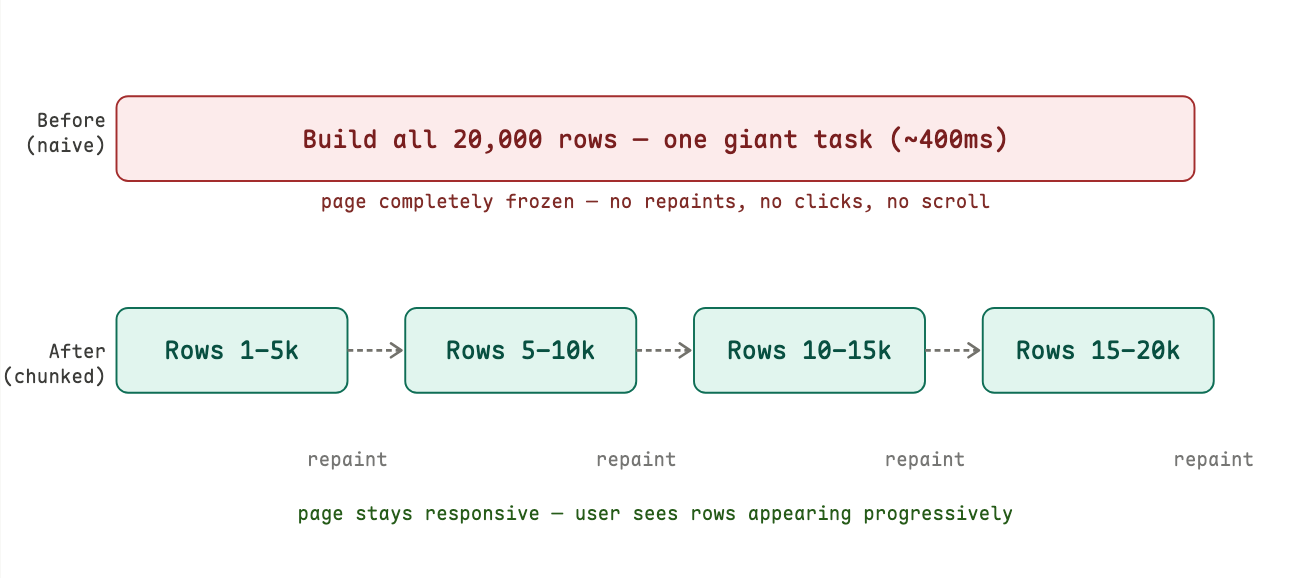
the fix: yield between chunks with setTimeout(fn, 0)
the trick is to split the work into smaller pieces and use setTimeout(fn, 0) between them. the 0 delay is intentional that means: put this in the macrotask queue, but let the browser repaint in between macrotasks.
here is the code implementation:
const rowCount = 20000;
const divideInto = 4;               // split into 4 chunks
const chunkSize = rowCount / divideInto;  // 5,000 rows each
let iteration = 0;

const tbody = document.getElementsByTagName("tbody")[0];

setTimeout(function generateRows() {
  const base = chunkSize * iteration;  // where this chunk starts

  for (let i = 0; i < chunkSize; i++) {
    const tr = document.createElement("tr");
    for (let t = 0; t < 6; t++) {
      const td = document.createElement("td");
      td.appendChild(
        document.createTextNode((i + base) + "," + t + "," + iteration)
      );
      tr.appendChild(td);
    }
    tbody.appendChild(tr);
  }

  iteration++;

  if (iteration < divideInto) {
    setTimeout(generateRows, 0);  // schedule the next chunk
  }
}, 0);
the key insight is that each call to setTimeout(generateRows, 0) doesn't run generateRows immediately. it places it at the back of the macrotask queue. the event loop then gets a chance to process repaints and any other pending events before picking it up.
how events travel through the DOM
when you click an element, the browser don't just fire that element's handler. the event does two way traveling: first down through the DOM, then back up.
the two phases
capturing phase: the event starts at the top (window) and travels down toward the clicked element, notifying handlers along the way.
bubbling phase: once the event reaches the target element, it reverses and travels back up to the top.
by default, addEventListener registers handlers in the bubbling phase. to use the capturing phase, pass true as the third argument.
element.addEventListener('click', handler);       // bubbling (default)
element.addEventListener('click', handler, true); // capturing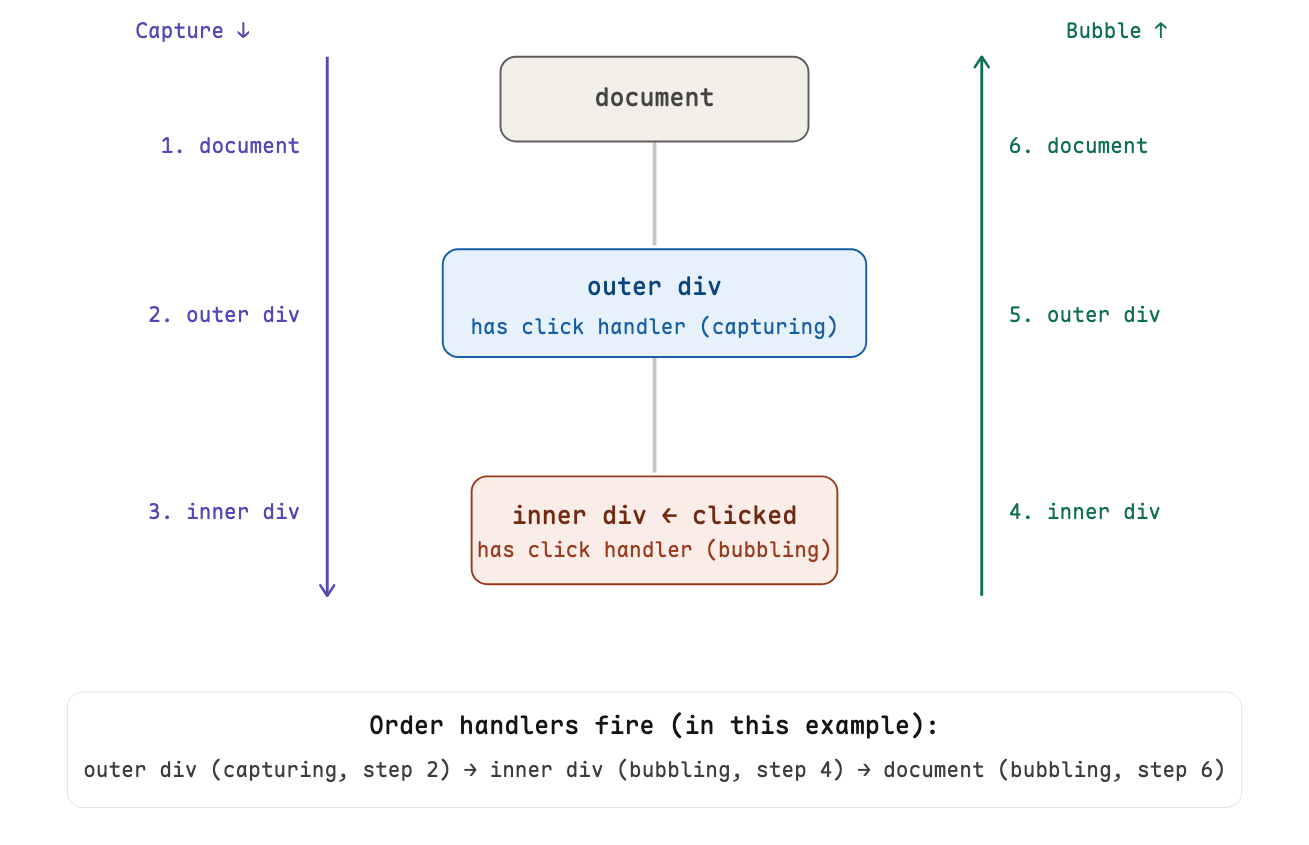
this vs event.target in handlers
these two often get confused:
event.targetis the element the user actually interacted with (where the event originated)thisis the element the handler is registered on (could be a parent)
when a click on an inner element bubbles up to an outer handler, this points to the outer element, but event.target still points to the inner element that was clicked. in arrow functions, this does not bind at all, so use event.currentTarget instead.
event delegation: one handler to rule them all
because events bubble, you can register a single handler on a parent element to handle events from all its children. this is called event delegation and it's far more efficient than attaching a handler to every child.
// Instead of this (one handler per cell):
document.querySelectorAll('td').forEach(td => {
  td.addEventListener('click', () => { this.style.background = 'yellow'; });
});

// Do this (one handler on the table):
table.addEventListener('click', (event) => {
  if (event.target.tagName.toLowerCase() === 'td') {
    event.target.style.background = 'yellow';
  }
});
this works even for cells added to the table after the handler was registered which is a major practical advantage.
custom events
the browser emits built-in events (click, keydown, load...), but you can create your own with the CustomEvent constructor. this unlocks loose coupling where different parts of your code can communicate without knowing anything about each other.
// anywhere in your code: announce something happened
function triggerEvent(target, eventName, data) {
  const event = new CustomEvent(eventName, { detail: data });
  target.dispatchEvent(event);
}

// in your shared Ajax code
triggerEvent(document, 'ajax-start', { url: '/api/data' });
setTimeout(() => triggerEvent(document, 'ajax-complete'), 3000);

// in your UI code. completely separate file, no knowledge of the above
document.addEventListener('ajax-start', () => {
  spinner.style.display = 'block';
});
document.addEventListener('ajax-complete', () => {
  spinner.style.display = 'none';
});
the Ajax code does not know or care whether anyone is listening. the UI code does not know or care how the Ajax code works. they are connected only by the event name which becomes a contract, not a dependency.